Found under Settings → Organization, this section allows administrators to manage their organization’s visual identity across the Scout platform including the sidebar, navigation bar, and dashboard accents.
Overview
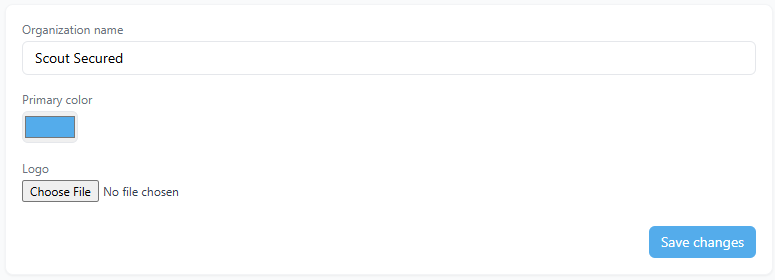
The Organization Settings page enables administrators to personalize how their organization appears throughout the Scout Admin Panel. These settings help align the interface with your brand or department identity, creating a consistent and recognizable experience for all users.
You can configure the following fields:
- Organization Name: The display name shown in menus, dashboards, and shared spaces.
- Primary Color: The accent color used for buttons, links, and highlights.
- Logo: The image displayed beside your organization’s name in the sidebar and top navigation.
Changes apply immediately across your tenant once saved.
How It Works
Each organization has its own stored branding configuration within the Scout platform. When you update a setting:
- The change is saved to your organization’s profile.
- The interface automatically updates for all active users.
- Dashboards, menus, and widgets refresh to reflect the new design.
Organization Name
Appears throughout the interface wherever your organization is referenced. Use a short, recognizable label such as your company name, department, or client identifier.
Primary Color
Sets the highlight color for interactive elements across the app. Accepts hex (for example, #20D3CA) or RGB color values. Choose a color that complements your logo and maintains good contrast for accessibility.
Logo
Uploads a custom image that appears next to your organization name in the sidebar and top navigation. Supported formats: PNG and SVG (transparent background recommended).
Why It Matters
Consistent branding helps users quickly identify which organization they are working in, especially when managing multiple tenants or clients. It also reinforces your organization’s identity within a shared, professional environment.
Customizing the look and feel of Scout improves user confidence, reduces confusion in multi-tenant contexts, and presents a more polished interface to internal and external users alike.
Tips and Best Practices
- Use a clear, concise organization name such as “Scout HQ” or “ACME Insurance.”
- Select a high-contrast color to maintain readability and accessibility.
- Upload logos around 64×64 px for crisp rendering across devices.
- Confirm logo visibility in both light and dark modes if enabled.
- All branding changes are recorded in the Audit Log for accountability and traceability.
Changes to organization branding apply immediately for all users within your tenant. A simple page refresh will display the updated name, color, and logo across the interface.